What are Instructions?
Custom Instructions let you create reusable templates that ensure consistent brand voice and messaging across all AI-generated content.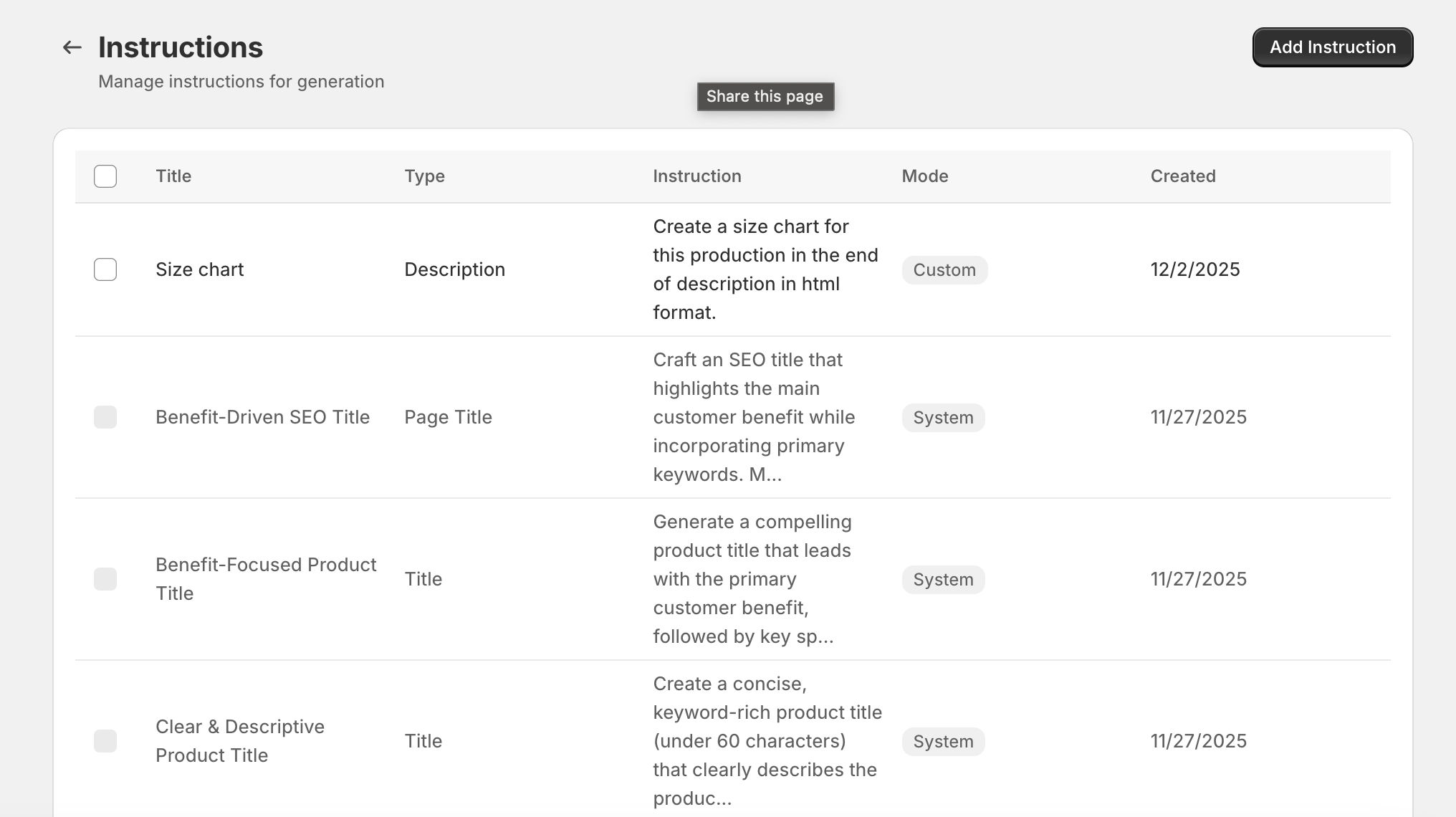
Purpose of Custom Instructions
Instructions are templates that guide the AI in generating content according to your specific requirements. They allow you to:- Maintain consistent brand voice across all products
- Include specific messaging or positioning
- Emphasize certain product features
- Use brand-specific terminology
- Create different styles for different product categories
- Automate repetitive content patterns
Instruction Types
Instructions are categorized by the content they generate:- Title: For product title generation
- Description: For product description generation
- SEO Title: For SEO page title generation
- Meta Description: For meta description generation
- Image Alt Text: For image alt text generation
System vs Custom Instructions
- System Instructions: Built-in templates provided by the app (cannot be edited)
- Custom Instructions: Your own templates (fully editable and deletable)
Creating Instructions
Build custom instruction templates to match your brand and product needs.Creating a New Instruction Template
 )
)
Selecting Instruction Type
Choose the content type this instruction applies to:- Title: Appears when generating product titles
- Description: Appears for product descriptions
- pageTitle: For SEO page titles
- metaDescription: For meta descriptions
- imageAlt: For image alt text
Writing Instruction Text
Compose the instruction that guides AI behavior: Example for a luxury product description:- Tone and style
- What to emphasize
- What to include
- Length preferences
- Formatting requirements
Using Variables in Instructions
Insert dynamic variables to personalize content:- Click variable tags to insert them into your instruction
- Variables are replaced with actual product data during generation
- Makes instructions reusable across many products
Available Variables
Use these variables in your custom instructions to dynamically insert product information:Product Variables
{product.title}- The product’s title{product.description}- Current product description{seo.title}- Current SEO page title{seo.description}- Current meta description
How Variables Work
During generation:- AI reads your instruction template
- Variables are replaced with actual product data
- AI generates content based on the complete instruction
- Result is customized to each specific product
Using Instructions
Apply custom instructions to ensure consistent, on-brand content generation.Applying Instructions During Generation
Single Product Generation:- Open a product in the editor
- Before clicking “Generate”, look for the instruction dropdown
- Select your custom instruction from the list
- Click “Generate”
- AI uses your instruction template for this generation
- Select multiple products
- Click “Generate Content”
- In the bulk generation modal, find “Custom Instruction”
- Select your instruction template
- Start bulk generation
- Same instruction applies to all products in the batch