Skip to main contentUnderstanding Jobs
The Jobs system lets you monitor bulk operations, review generated content, and selectively publish results.
What are Jobs?
A job is a background task that processes multiple items:
- Created when you start bulk generation
- Runs in the background while you work
- Tracks progress in real-time
- Stores results for review
- Allows selective publishing
Viewing All Jobs
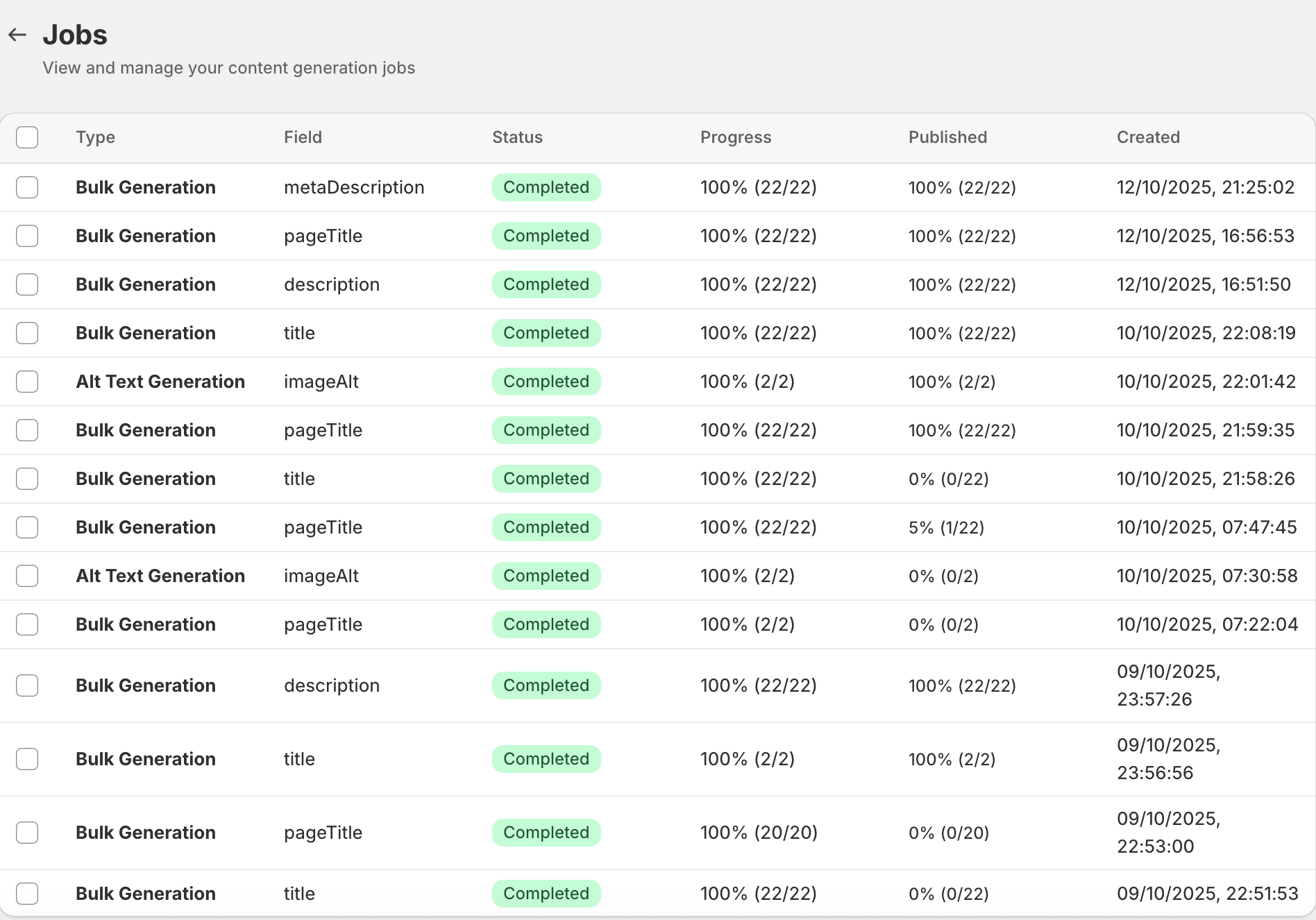
The Jobs list displays:
- All jobs in reverse chronological order (newest first)
- Job type (Bulk Generation or Alt Text)
- Content field being generated
- Status badge
- Progress information
- Publish statistics
- Creation date
Job Progress Indicators
For each job:
- Progress Bar: Visual representation of completion
- Percentage: Exact completion percentage
- Count: “X of Y items completed”
- Real-time Updates: Auto-refreshes while processing
Job Details
Dive deep into individual job results and manage publishing.
Viewing Individual Job Progress
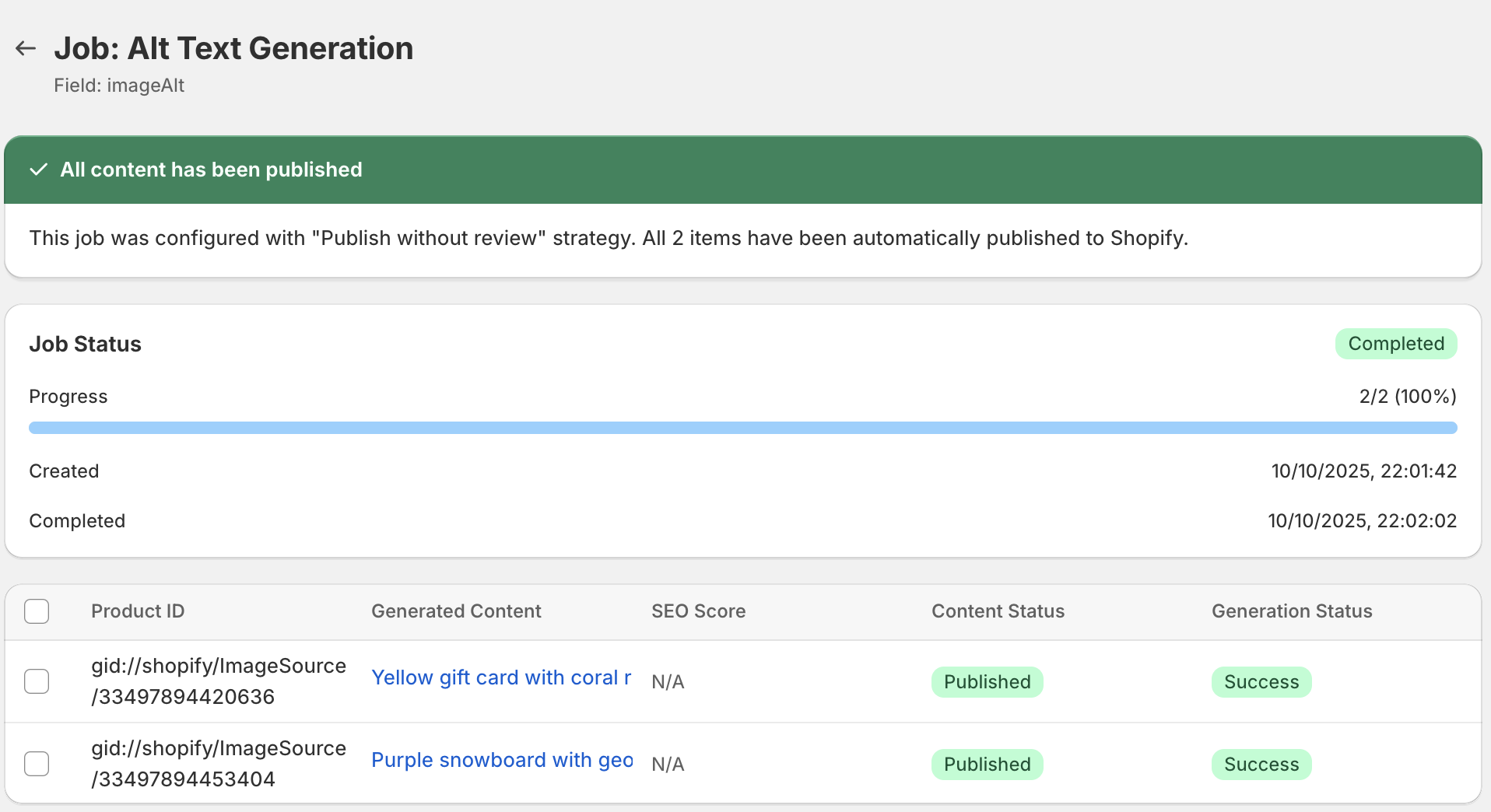
The job details page shows:
- Overall job status and progress
- Complete list of all items in the job
- Results for each item
- Publishing status
- Error messages (if applicable)
Item-by-Item Results
For each product/item in the job:
- Product Name: Which product was processed
- Status: Success or failure
- Generated Content: Preview of AI output
- Publish Status: Published or unpublished
- Action Buttons: Preview, Publish, View Product
Success and Failure Tracking
Job summary displays:
- Total Items: How many items were in the job
- Successful: How many completed successfully
- Failed: How many encountered errors
- Published: How many have been published to Shopify
- Pending Review: How many await publishing
Published vs Unpublished Items
Items are marked as:
- Published: Content is live on Shopify (green checkmark)
- Unpublished: Content generated but not published yet
- Failed: Generation failed (error icon)
Filtering Results:
- View only unpublished items
- View only published items
- View only failed items
Publishing Strategy
Control how generated content is handled with publishing strategies.
Review Before Publish (Default)
How It Works:
- AI generates content
- Content is saved in the app database
- Content is not automatically published to Shopify
- You manually review and approve before publishing
- Select which items to publish
When to Use:
- First time using bulk generation
- Testing new custom instructions
- High-value products requiring quality control
- Content that needs manual review
- When you want selective publishing
Auto-Publish Mode
How It Works:
- AI generates content
- Content is saved in the app database
- Content is automatically published to Shopify
- No manual review step
- All successful items publish immediately
When to Use:
- Trusted workflows you’ve tested
- Low-risk content updates
- Large catalogs where manual review is impractical
- Seasonal updates with proven templates
- When using well-tested custom instructions
Configuring Publishing Strategy
Set your preference in Settings:
- Navigate to Settings page
- Find “Bulk Generation Strategy” section
- Select “Review before publish” or “Publish without review”
- Click Save
- Setting applies to all future bulk jobs
Changing Strategy:
- Change anytime in Settings
- Affects only new jobs
- Existing jobs retain their original strategy
- No impact on already-generated content
Managing Job Results
Work with generated content, publish selectively, and navigate efficiently.
Previewing Generated Content
For any item in a job:
- Locate the item in the results table
- Click “Preview” button
- Modal displays the full generated content
- Review carefully
- Option to publish directly from preview
- Close to return to list
Preview Features:
- Full content display
- Formatting preserved
- SEO scores shown (for SEO fields, Pro/Max only)
- Product context displayed
- Direct publish option
Publishing Individual Items
Publish one item at a time:
- Find the item in the results list
- Click “Publish” button next to it
- Confirm publishing
- Content updates on Shopify immediately
- Status changes to “Published”
- Green checkmark appears
Publishing All Items
Publish everything at once:
- Review that you want to publish all items
- Click “Publish All” button at the top
- Confirm bulk publishing action
- All unpublished items publish simultaneously
- Progress indicator shows publishing status
- All items marked as published when done
Navigating to Products from Jobs
Jump directly to products:
- Click product name in any job result
- Opens product editor for that product
- Review or edit content
- Return to job via browser back button
- Useful for making tweaks after generation
Understanding Publish Status
Status indicators:
- Unpublished: Content ready but not on Shopify (yellow/warning color)
- Published: Content live on Shopify (green checkmark)
- Failed: Could not generate or publish (red X)